
Email communication is now supported in the Omnichannel module. Both agent and admin interfaces have been updated to include new options for managing email cases.
✨New Features
Omnichannel: Email Communication
The initial phase of email integration for Omnichannel is now available. This release includes UI design updates for both agent and admin interfaces to support email communication channels. Learn more about how to use it in our Help Centre.
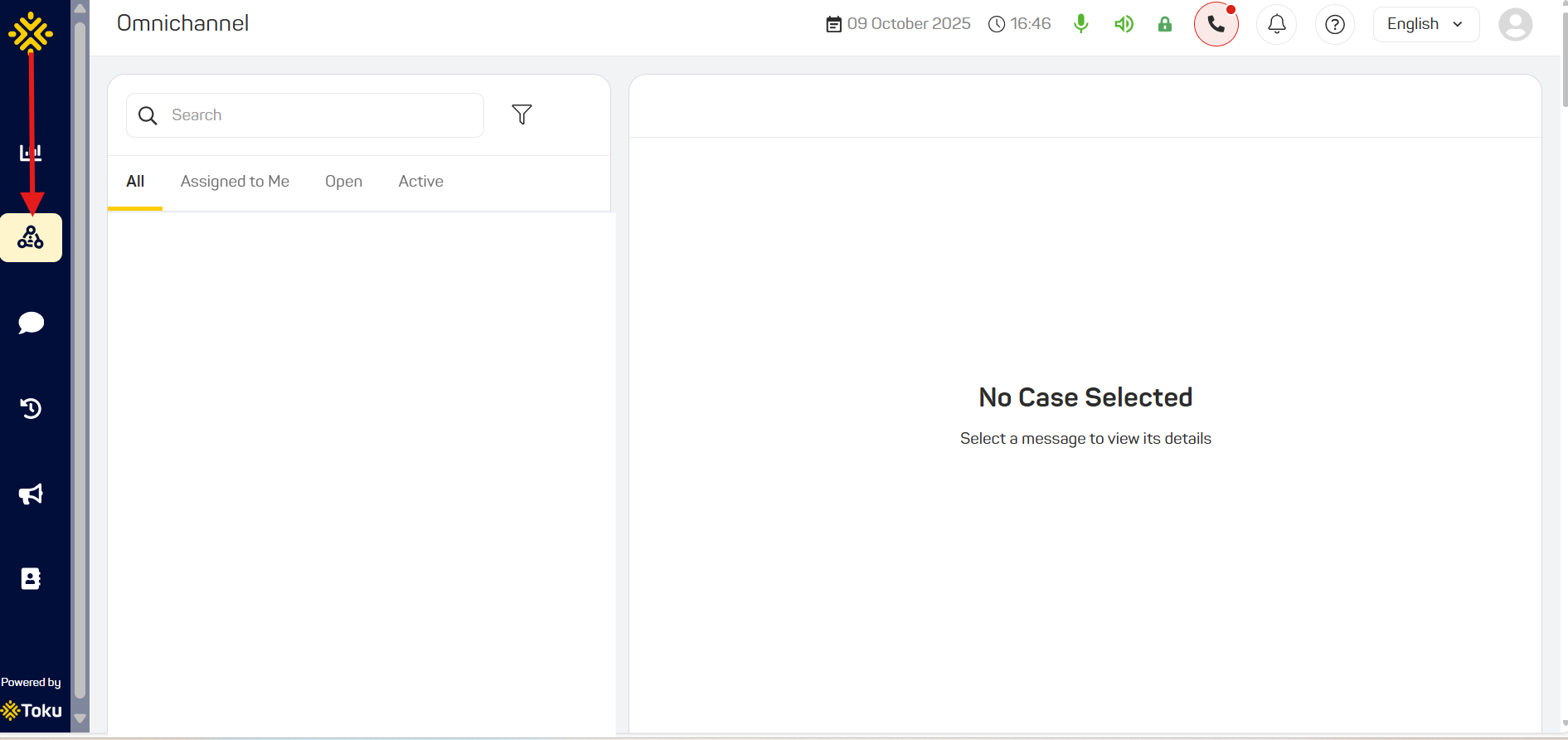
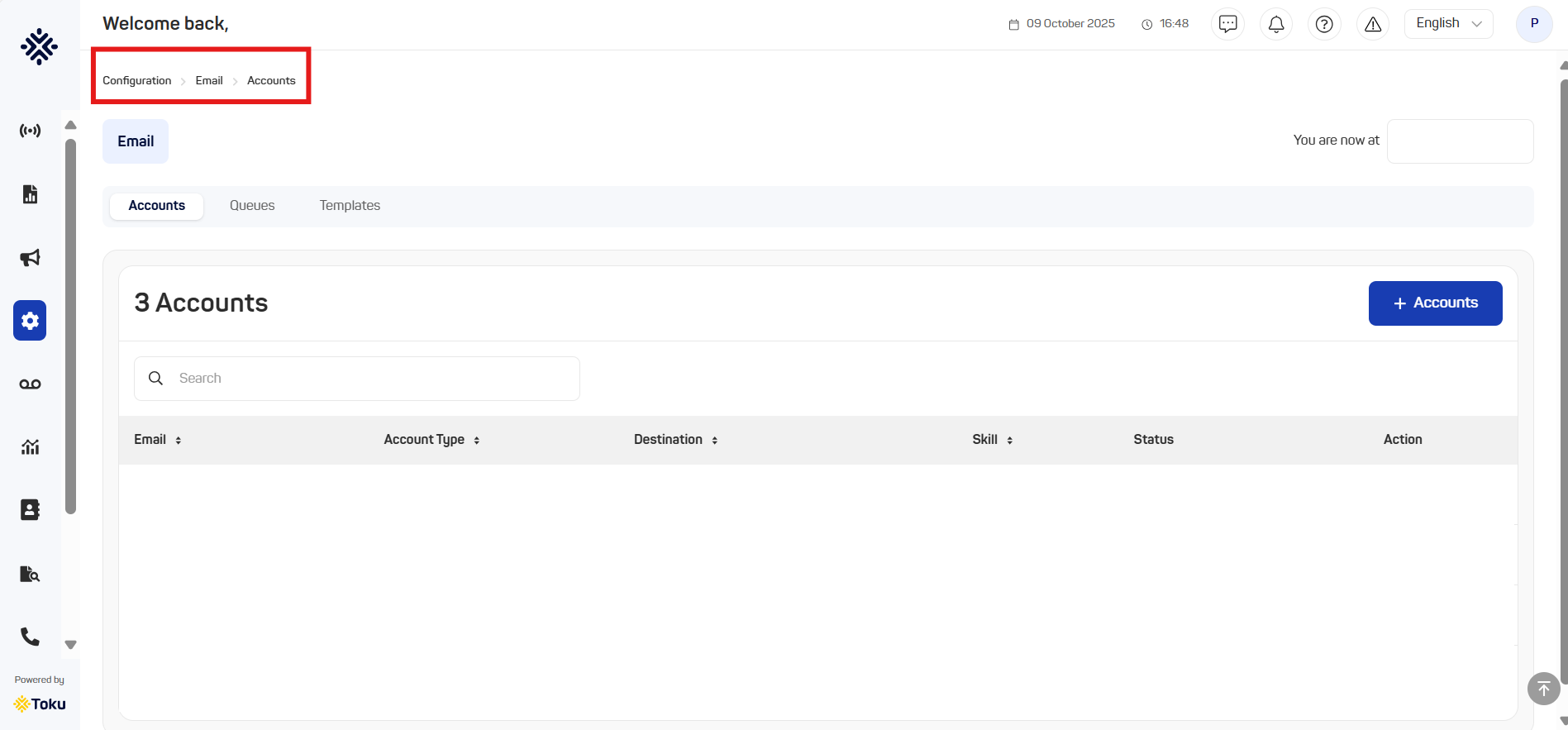
Here are the functionalities of the upcoming feature:
- Email Queues Page
A new dashboard provides admin users with a real-time overview of all active customer email queues and the status of ongoing support cases. The dashboard enables efficient monitoring and management of live emails for routing, tracking, and prioritisation.
- Queue Management
Search Tab: Search the queue list using name, subject, or assigned agent.
Filters Button: Filter displayed emails by parameters such as status or queue.
Queue Details: Identify queue name, source channel, assigned agent, case duration, and current case status.
- Email Account Management
Administrators can now set up and manage email account configurations to ensure correct routing and activation for each business unit.
- Account Management
Add Account Button: Create new accounts with provider selection.
Search Tab: Locate email accounts by address or account type.
Status Control: Activate or deactivate accounts.
Edit/Delete Actions: Modify or remove existing accounts.
-Agent Portal Interface Enhancements
Agents can now manage assigned email cases directly within the Omnichannel tab on the agent portal and respond from the same interface. Email conversations appear on the right panel when opened, with multi-tab support to work on multiple cases simultaneously.
- Reply Management Options
Agents can now perform the following actions for email cases:
Reply by Email: Send direct responses or use predefined templates.
Send to Spam: Flag and remove spam emails.
Reject Case: Return invalid cases to the original queue.
Reassign to Agent/Queue: Forward cases to another agent or queue.
New Email: Send new outbound emails linked to existing cases.
Case Pending / Case Close / No Action Needed: Update case status based on resolution progress.
Detailed Documentation:


Comments
0 comments
Please sign in to leave a comment.